How to Setup SPF and DKIM for Bullhorn
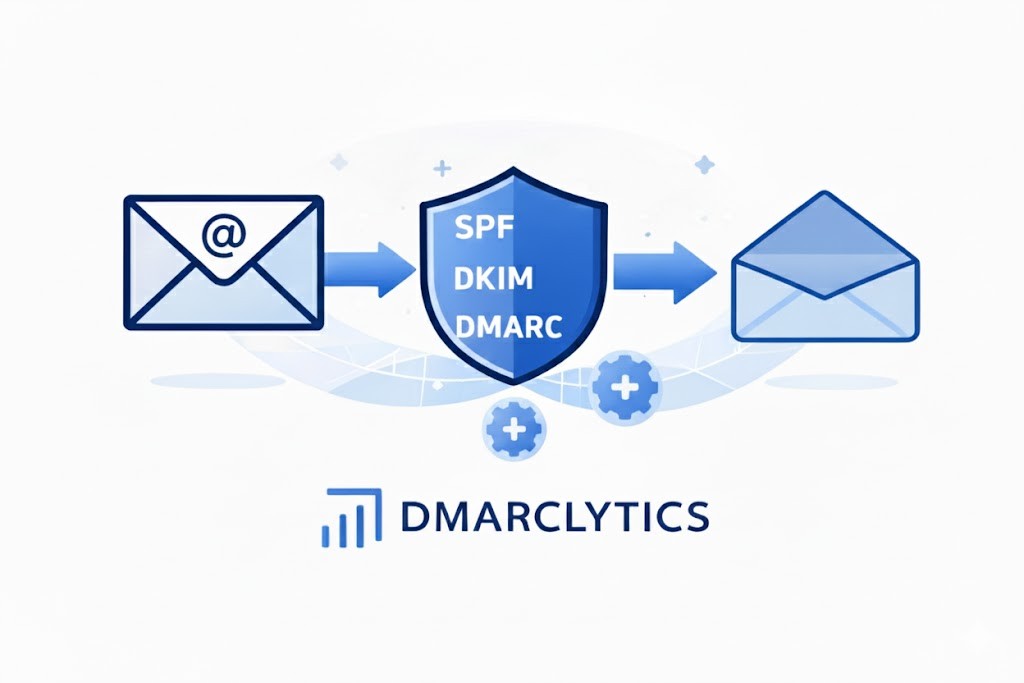
This guide outlines the steps to configure Sender Policy Framework (SPF) and DomainKeys Identified Mail (DKIM) for your domain in Bullhorn. Completing these steps ensures your domain is aligned with DMARC standards, improving email security and deliverability.
Prerequisites
Access to your DNS hosting provider (e.g., GoDaddy, Cloudflare, Namecheap, etc.).
Administrative access to your Bullhorn account.
Basic understanding of how to add or modify DNS TXT and CNAME records.
SPF Setup
Check if your domain already has an SPF record by querying your DNS records here.
If an SPF record exists, you will need to update it. If not, you’ll create one.
If no SPF record exists
Add the following TXT record in your DNS:
Hostname:
Value:
If an SPF record already exists
Example current record:
Update it to include Bullhorn:
Save your changes
This authorises Bullhorn to send emails on behalf of your domain.
DKIM Setup
Log in to your DNS hosting provider
Open your DNS management console.
Add a new CNAME record
Host/Name:
bh._domainkey
Points To / Value:
bh._domainkey.bullhornmail.com
Save your changes
Contact Bullhorn Support
Once your DNS record is live, contact Bullhorn Support and request that DKIM be enabled for your mass emails. They will finalise the setup.
For more details, see: Bullhorn KB: DKIM and DMARC Records
Verification
Use dmarclytics.io to check that your SPF and DKIM records are correctly configured.
Support
If you need help with setup or troubleshooting:
Contact us via live chat.
Or submit a support ticket, and our team will assist you.


Secure Your Domain Free for 14 Days

100% DMARC, SPF, DKIM compliance
Improve deliverability, pass Google & Yahoo DMARC checks