How to Set Up SPF & DKIM for Sendgrid
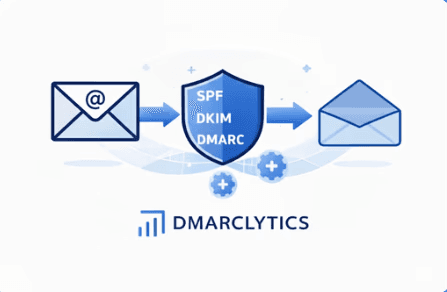
Email authentication is critical for deliverability, trust, and DMARC compliance.
Properly configuring Sender Policy Framework (SPF) and DomainKeys Identified Mail (DKIM) for SendGrid ensures recipients like Gmail, Outlook, and Yahoo correctly verify your sending domain improving inbox placement and protecting against spoofing.
Prerequisites:
You must have administrator access to your DNS provider
You must be logged in to your SendGrid account
You should only have one SPF record per (sub)domain
SPF Setup For SendGrid
SPF tells recipient mail servers which systems are allowed to send email on behalf of your domain.
Many SendGrid accounts use Automated Security, where SendGrid manages SPF using records on a dedicated subdomain. But if you want explicit SPF on your main domain, follow these steps:
If You Don’t Have an SPF Record
Create a TXT record on your DNS host with the following value:
Your DNS record should look like:
Host | Type | Value |
|---|---|---|
@ / your domain | TXT |
|
If You Already Have an SPF Record
Modify your existing TXT record that starts with v=spf1 to include SendGrid, ensuring the final record has only one SPF entry.
Example:
⚠ Only one SPF TXT record per domain is allowed.
DKIM Setup For SendGrid
DKIM ensures your emails are cryptographically signed so receiving servers can verify they haven’t been altered in transit.
SendGrid generates DKIM records when you authenticate a domain through its UI
Step-by-Step: Authenticate Domain in SendGrid
Log in to your SendGrid dashboard
Navigate to Settings → Sender Authentication
Under Domain Authentication, click Get Started or Authenticate Your Domain
Choose your DNS host provider from the list and click Next
Enter the domain you send mail from
Do not includewwworhttps://— just the base domain.Click Next until you reach the final page that displays your CNAME records
Copy all records and add them to your DNS provider exactly as shown
SendGrid typically provides three CNAME records — one for SPF (via return-path) and two for DKIM.
Record Name | Type | Value / Points To |
|---|---|---|
| CNAME |
|
| CNAME |
|
| CNAME |
|
Verify DNS Changes
DNS propagation can take up to 48 hours. After publishing the records:
Return to the SendGrid Sender Authentication page
Click Verify next to your domain
SendGrid will check your DNS records and confirm authentication
— once verified, SPF and DKIM will start signing your outgoing email
Why SPF & DKIM Matter
SPF and DKIM together with DMARC help:
Prevent email spoofing and impersonation
Improve inbox deliverability
Remove “via sendgrid.net” branding in recipient mail clients
Build domain trust with Gmail, Outlook, Yahoo, and others
Next Steps
Once SPF and DKIM are verified:
Configure DMARC to enforce policy and receive reports
Monitor deliverability and authentication status with tools like Dmarclytics


Secure Your Domain Free for 14 Days

100% DMARC, SPF, DKIM compliance
Improve deliverability, pass Google & Yahoo DMARC checks